
Market products next to the food
Open a separate Market section in the menu. Products show as small cards, stock drops with each order, and a sold-out product cannot be added to the cart.
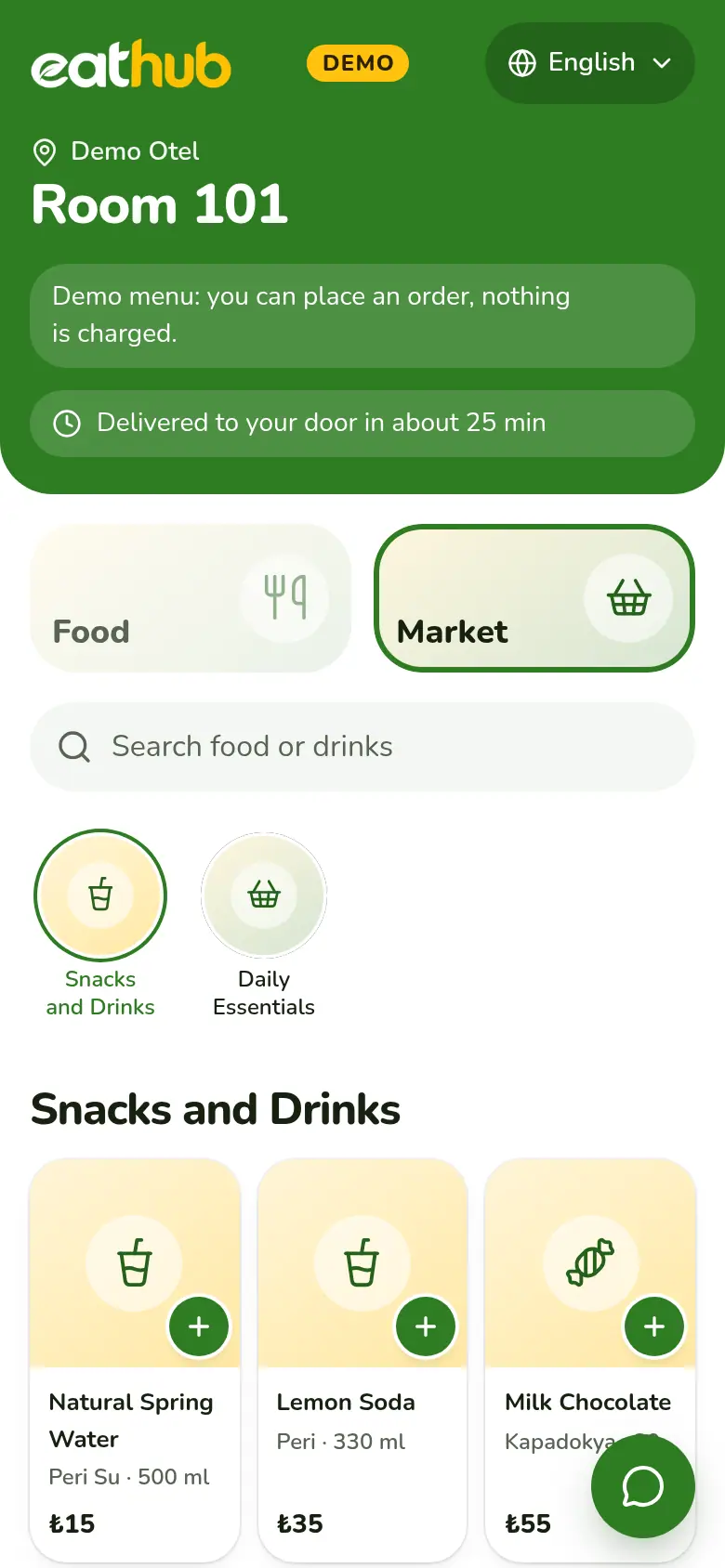
Food and Market sections in one menu
Every category belongs to a section. Food and Market show separately, and one cart can hold items from both. You add photos to sections, categories and products.
- A product without a photo shows a placeholder in your brand colours
- When a cart spans several sections, the receipt prints with section headings
- In the reports, the section filter applies to the product tables
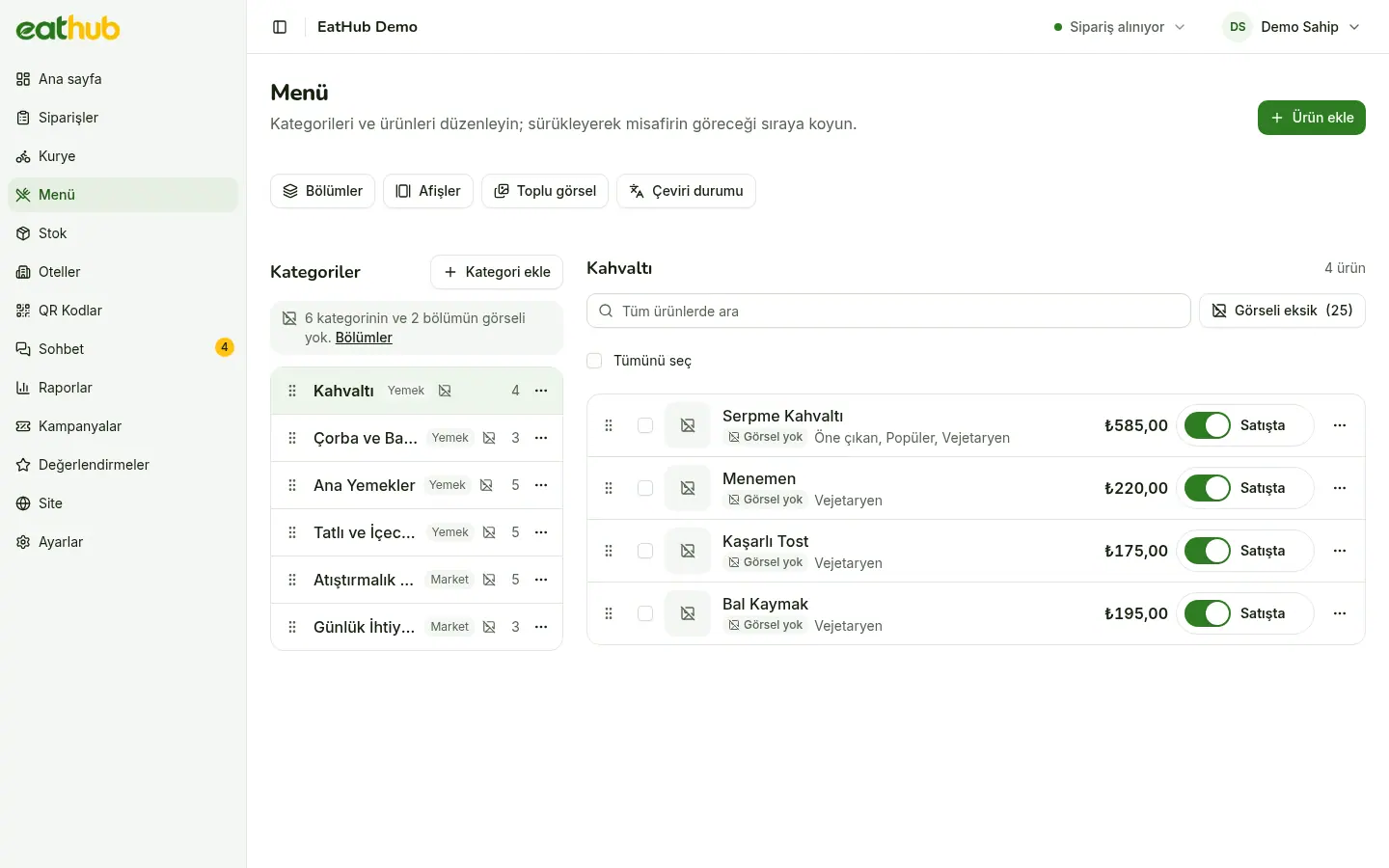
What guests see in the market
- Grid cards
- Market products sit on small cards and go into the cart with one tap.
- Sold out and Last few
- A product that runs out shows as sold out and cannot be added; one running low gets a Last few badge.
- One cart, one payment
- Food and market items go in the same order; the guest pays once.
- The 18+ badge
- A product flagged with an age limit shows an 18+ badge on its card.
Stock follows the orders
You turn stock tracking on per product; leave the stock field empty and the product is not tracked. Stock drops when an order is placed and comes back when it is cancelled. You add stock when goods arrive, correct it after a count, and every change leaves a movement record.
- Download the Excel template and import stock in one go
- Give each product a low-stock threshold and the panel warns you when it is reached
- The list shows barcode, stock, threshold and status side by side
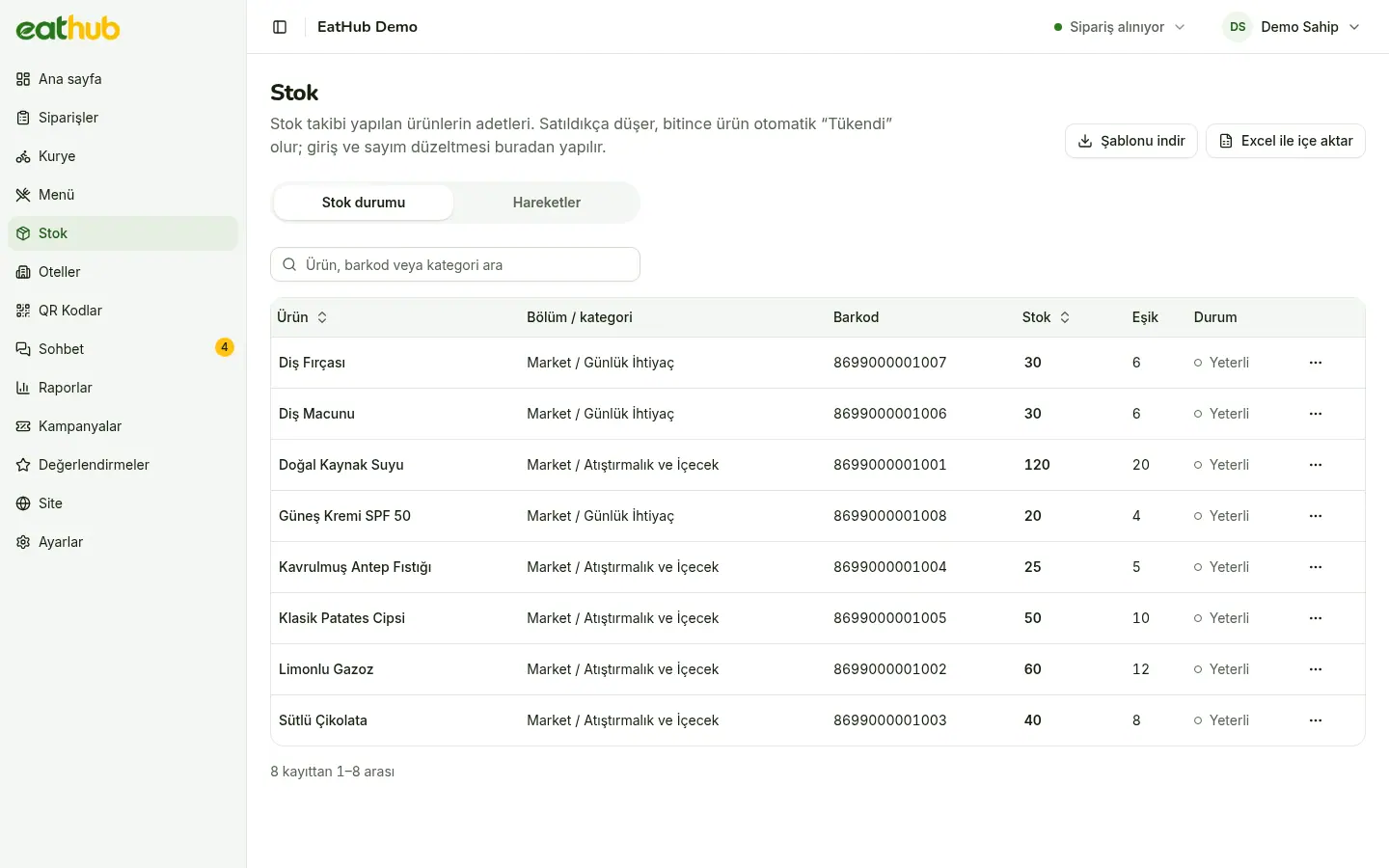
The life of a stocked product
Stock is entered
By hand when goods arrive, or by importing an Excel file.
An order takes stock
Stock is deducted in the same step that creates the order, and an order the stock cannot cover is refused.
A cancellation returns it
The stock of a cancelled order goes back, including an order that was never paid and cancelled itself.
The threshold warns
When stock reaches the threshold or falls below it, the panel warns you and guests see Last few on the card.
An age-limit flag and a confirm step
You flag a product as age-restricted. If one is in the cart, the guest cannot order until they confirm they are over 18 and will show ID on delivery. The receipt and the courier screen carry a warning.
- With no age-restricted product in the cart, no confirm step appears
- The confirmation is the guest’s own statement and does not verify identity
- What you choose to sell, within the law, is your decision as the business
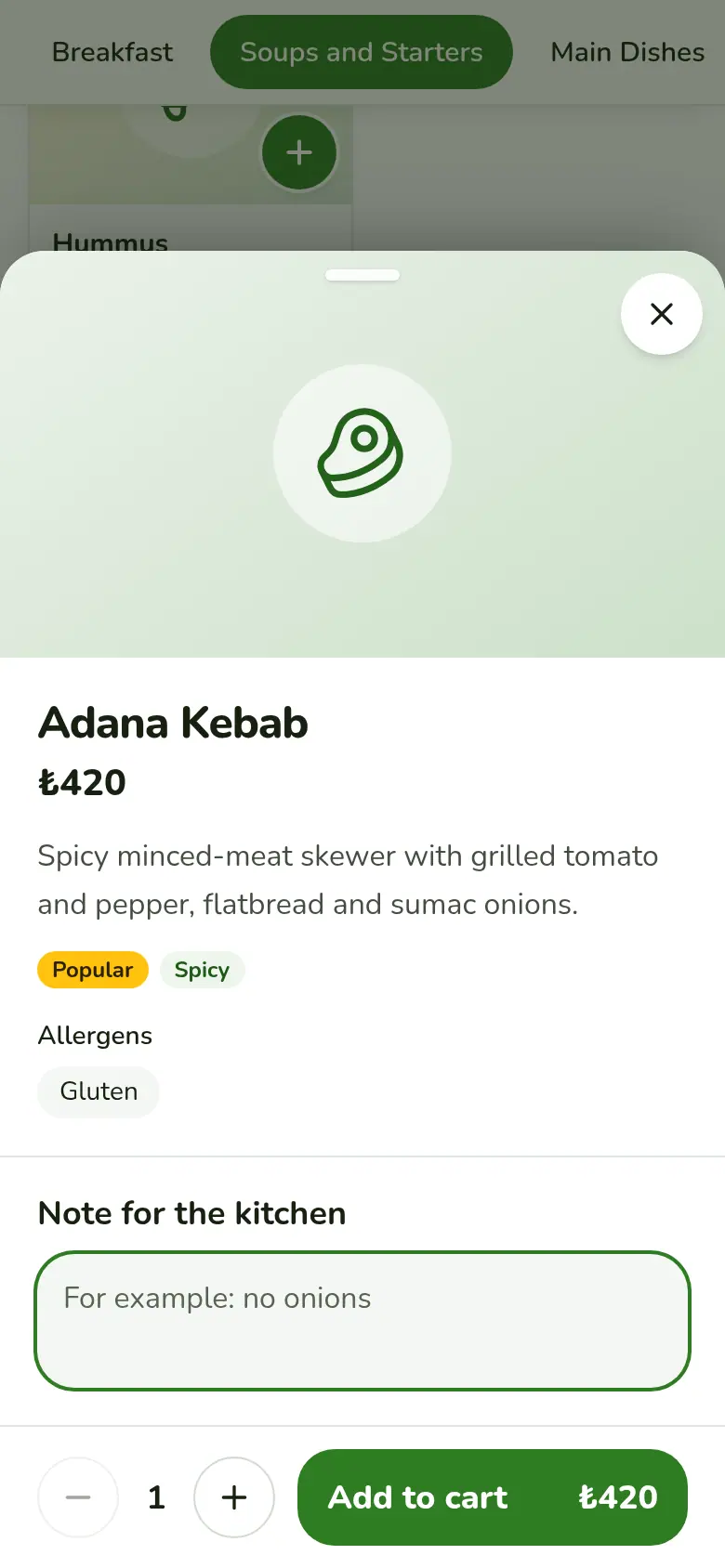
See the Market section on your phone
Place an order from the demo room to try the guest side. No payment is taken and the order reaches no one.
Common questions
Is stock tracking required?
No. A product with an empty stock field is not tracked and always shows as available; you can still switch it off with the sold-out switch.
Can one order hold food and market items?
Yes. The guest builds one cart and pays once. The receipt prints with section headings.
Does the age flag check ID?
No. The guest’s confirmation is collected in the cart, and the receipt and courier screen show a warning; checking ID at the door is the restaurant’s job. The business decides what it may sell under the law.
Can I update stock from Excel?
Yes. Download a template from the panel, fill it in and import it; every change is recorded as a stock movement.
Let us start with your rooms
Fill in the form and we will call you to plan the setup together.